Mark the moment.
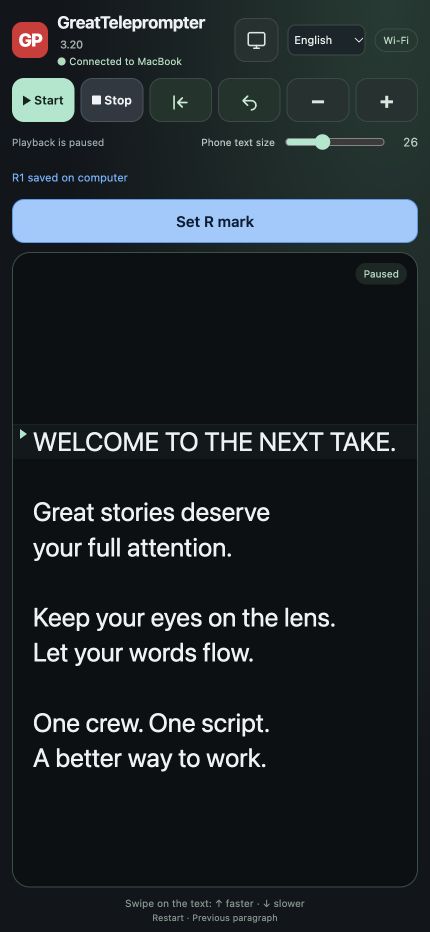
Red M marks at the Mac cursor. Blue R marks at the reading position from the phone. Add an optional note to an R mark. Export a marked script for the next stage of the production.
BUILT BY THE PEOPLE WHO SHOOT.
The teleprompter we wanted on our own productions. A focused Mac workspace, a clean Presenter screen, and an iPhone remote that puts the pace in the photographer’s hand.
Mac app · Apple Silicon · macOS 13+ · Six interface languages
28 seconds inside GreatTeleprompter. Real Mac interface, real scrolling and the controls you will use on set.
Recorded in the actual Mac app · English example interface · No soundtrack
The presenter shouldn’t have to wait for the operator. The photographer shouldn’t have to call across the room to change the pace. And a last-minute edit shouldn’t become part of the performance.
We made GreatTeleprompter around those moments. Developed by television professionals at Great Dane, for the studio, location shoots, ENG and the next unexpected change of plan.

Writes, finds, corrects and runs the script on Mac.
Controls the text’s speed and playback from iPhone. Adds R marks and notes.
Sees a clean reading screen. On a connected display or an optional iPad.
The photographer is already watching the performance. Let them adjust the pace without walking back to the Mac.
INTERACTIVE WORKFLOW ILLUSTRATION
Keep your eyes on the lens.
Stay in the story.
Let the crew set the pace.
The next take starts here.
An illustration of speed control. Actual app screenshots are shown below.
Correct a name. Rewrite the intro. Find the right sentence. Edit in the background while Presenter and mobile screens keep the last published version. Publish when you are ready.
Welcome to today’s conversation.
Welcome to today’s conversation.
The reading screen stays unchanged until you publish.
Interactive illustration. Try the two buttons to see the difference between a draft and published text.
Red M marks at the Mac cursor. Blue R marks at the reading position from the phone. Add an optional note to an R mark. Export a marked script for the next stage of the production.
Search the script, jump between matches and read from the cursor. Import TXT, RTF or Word. Save your script and export marks without cluttering the presenter’s screen.
Open Presenter on the Mac or move it to a connected external display. Choose fullscreen and mirrored text for your prompter setup. iPad is an extra option, not a requirement.
A line to retake? Add an R mark and a short note from your phone. Or place an M mark at the Mac cursor. Bring the log into the next stage of your production.
Read the marker import guide ↗Resolve: EDL timeline markers. Premiere: XML marker-reference sequence. Final Cut Pro: FCPXML marker-reference project.
Match camera clock timecode, recording date and frame rate. This is not automatic camera synchronisation and does not follow clips moved during editing. XML exports create separate reference timelines without footage.
Great Dane makes film, live productions and communication. After years on our own shoots, we knew the moments that needed a better solution: a last-minute correction, a photographer setting the pace, a presenter who needs to stay focused. GreatTeleprompter grew from that experience. For social videos, studio days and location shoots.
 Meet the people behind it↗
The built-in guide opens on a fresh installation. Import a script or paste your words.
Open Presenter. Use the Mac, a connected screen, or an optional iPad reader.
On the same Wi-Fi, scan the phone QR code. Start, stop, change speed and mark from iPhone.
Yes. The browser-based remote supports iPhone and Android. The Mac app must remain running.
No. GreatTeleprompter is a Mac app with its own separate Presenter window. Use it on your Mac or a connected display. The iPad reader is optional.
No. It controls the teleprompter’s playback and speed and can create R marks with optional notes. Camera operation stays with your normal camera setup.
In normal editing, Presenter follows the editor. Choose Edit in background to keep the published text on Presenter and mobile devices unchanged. Publish to Presenter applies your changes when you choose.
Scripts and marks are stored locally on your Mac. Published text is shared with the devices you pair over the local network. The app does not send manuscript analytics to Great Dane.
No. The Mac is the host and must stay on with the app running. Use a trusted network that allows devices to reach each other; guest Wi-Fi may block this.
THE BUILT-IN USER GUIDE
The full GreatTeleprompter 3.21 guide, including keyboard shortcuts. Choose your language above. The same guide is built into the Mac app.
GREATTELEPROMPTER 3.20 — USER GUIDE

GET STARTED
GreatTeleprompter runs on your Mac. You do not need an iPad. Type or paste your script, or choose Open… to import a TXT, RTF or Word file (.docx or .doc). Start begins scrolling; Pause keeps your position. Speed changes the scrolling speed. Restart (↺) returns to the beginning and pauses.

PRESENTER AND EXTERNAL SCREENS
Presenter opens a separate reading window. Move it to an external display if required. Mirror Presenter switches mirrored text on or off and opens the window if it is closed. Full Screen expands Presenter to its display. The separate Mirror and Light/dark controls affect the Mac’s reading preview. Presenter and the iPad reader show clean script text without M/R labels.

IPHONE / ANDROID REMOTE
Connect your Mac and phone to the same private Wi-Fi. Choose Mobile / iPad via Wi-Fi, select iPhone / Android · Remote, and scan the QR code. Keep the Mac app running. No account is needed. The phone can start or stop playback, change speed and return to the beginning or previous paragraph. Swiping up on the text increases speed; swiping down reduces it. Restart and Previous paragraph also pause playback. Phone text size changes only that phone’s display.

IPAD AS AN OPTIONAL READING SCREEN
In the Mac connection window, choose iPad · Reader and scan its QR code with the iPad. You can also show the iPad QR code from the phone remote. The iPad follows the Mac’s reading position and starts mirrored. Mirrored switches between mirrored and normal text. Fullscreen enlarges the reading view; Exit fullscreen brings back the controls. The iPad reader link is read-only: it cannot control playback or create marks. All devices must remain on the same Wi-Fi, with the Mac app running. Stop phone and iPad connection disconnects both links.

RED M MARKS AND BLUE R MARKS
On the Mac, place the text cursor at the desired word and choose Mark at cursor. Red M1, M2 and subsequent marks identify cursor positions. On the phone, Set R mark creates blue R1, R2 and subsequent marks at the Mac’s current published reading position. M and R numbering are independent. Tap an operator label to remove that mark without deleting words. Deleted numbers are not reused.

Double-tap Set R mark quickly to add an optional remark of up to 240 characters to the same R mark. A single tap marks immediately while playback continues. Save remark includes the remark in the marked export. Cancel leaves the mark without a new remark. Remarks are not displayed in Presenter.

EDITING AND SEARCH
Search script finds words in the editor. Find and Previous move between matches. Read from here moves the reading position to the cursor and pauses. Edit in background lets you edit while Presenter and the mobile displays keep the previously published text. Publish to Presenter transfers your changes. Font, Text and Line spacing control typography. Mac/Presenter text size ranges from 8 to 100; phone text size ranges from 14 to 48 and is independent.

SAVE, EXPORT AND DELETE
Save writes to the active text file. Save As… creates or selects another TXT file. Importing a Word or RTF file does not overwrite that source document. Saved ✓ confirms a successful save. The app also retains its current script and marks locally.

Export marked script… creates an RTF file for Word or TextEdit, with red [M1], blue [R1] and black script text; optional TXT has no colours. New mark session… clears the mark log and restarts M/R numbering, while keeping your script and exported files. Export first if you want to retain the old marks. Delete script… removes the app-owned script, marks and undo history and returns to the guide. Files you exported separately and system backups are not deleted.

KEYBOARD SHORTCUTS
Space — start/pause when you are not editing text.
← / → — slower/faster when you are not editing text.
↑ — return to the beginning and pause when you are not editing text.
⌘F — search the script.
⌘S — save. ⇧⌘S — save as.
⌘Z — undo. ⇧⌘Z — redo.
⌘X / ⌘C / ⌘V / ⌘A — cut, copy, paste, select all.
⌃⌘F — toggle Presenter fullscreen. Esc — leave Presenter fullscreen when Presenter has focus.
⌘? — open this guide. ⌘Q — quit.

LANGUAGE, HELP AND PRIVACY
Choose Language to change the interface. English is the first-run default; your choice is remembered. The Mac, phone and iPad can each use their own interface language. Changing language never translates or replaces your script. User guide, also available from Help, always opens separately without changing your script, marks or active file.

Scripts and marks stay on the Mac; published reading text is sent to paired devices over the local network. Use a trusted private Wi-Fi. No manuscript analytics are sent by the app. Report an issue… opens a report that you can copy or open as an email draft to greatteleprompter.com/support/. Nothing is sent automatically. Check the report before sending and do not include private manuscript text unless you intend to share it.